# EAC, BE, RICOCHET: Setup
{% hint style="info" %}
This step is only necessary and important when playing games that utilize the EAC (Easy Anti-Cheat), BE (BattlEye) or RICOCHET anti-cheat systems.\
\ This should not be necessary for VALORANT
{% endhint %}
## Example of EAC, BE and RICOCHET games
| EAC | BE | RICOCHET |
| ------------- | ----------------- | ------------ |
| Fornite | Fortnite | Call of Duty |
| Apex Legends | Rainbow Six Siege | Warzone 2.0 |
| Rust | Ark | |
| | PUBG | |
## Download TMAC
{% file src="/files/Evh3zIEWgyS39DV2XycT" %}
1. Download **TMAC** above
2. Unzip the file
3. Run **TMAC\_setup.exe**
## Spoof MAC Addresses
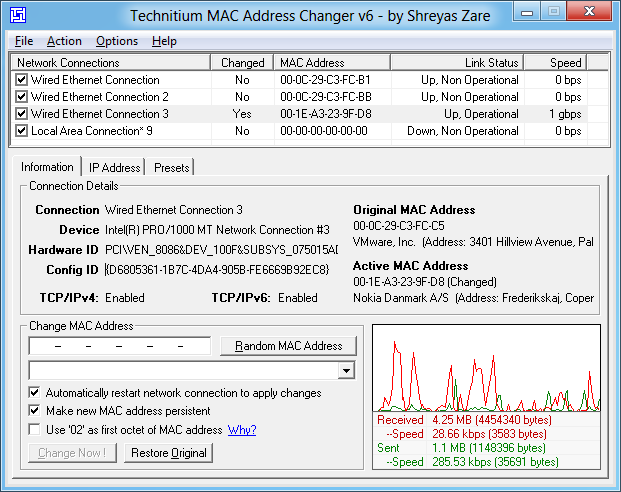
1. Run **TMAC**
2. Select a network connection and click **Random MAC Address**
3. Repeat this for all of your networks
## Disable unused Network adapters
1. Press **Win + R**, type `ncpa.cpl` and click **OK**
2. Remember the name of the active connection
3. Right-click the Windows logo, select **Device Manager**
4. Right-click and select **Disable device** on all other Network adapters
## Change adapter properties
1. Press **Win + R**, type `ncpa.cpl` and click **OK**
2. Right-click your active connection and click on **Properties**
3. Configure it as shown below:
4. Click **Configure**
5. Switch to **Advanced** and configure the following properties:
```markdown
Advanced EEE - Disabled
ARP Offload - Disabled
Flow Control - Disabled
IPv4 Checksum Offload - Disabled
Large Send offload v2 (IPv6) - Disabled
Network Address - Not Present
TCP Checksum Offload (IPv6 ) - Disabled
UDP Checksum Offload (IPv6 ) - Disabled
```
##
## Use Warp
{% embed url="" %}
1. Download Warp from [**1.1.1.1**](https://1.1.1.1)
2. Install it and **Connect**
---
# Agent Instructions: Querying This Documentation
If you need additional information that is not directly available in this page, you can query the documentation dynamically by asking a question.
Perform an HTTP GET request on the current page URL with the `ask` query parameter:
```
GET https://fishy-markets.gitbook.io/perm-spoofer-setup/spoof/eac-be-ricochet-setup.md?ask=
```
The question should be specific, self-contained, and written in natural language.
The response will contain a direct answer to the question and relevant excerpts and sources from the documentation.
Use this mechanism when the answer is not explicitly present in the current page, you need clarification or additional context, or you want to retrieve related documentation sections.